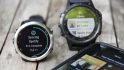
For the last two months I’ve been happily listening to music while I’m running. And finally, now you can too.
It wasn’t that I couldn’t listen to music before that point. Certainly I had plenty of devices that supported music while running, including Garmin ones. But at the end of the day I’m a huge Spotify user, and as such – that’s what I’m gonna leverage for music. Being 2018, I’m well beyond the days of loading individual music files to my watch. And the other two streaming platforms on Garmin just weren’t my cup of tea.
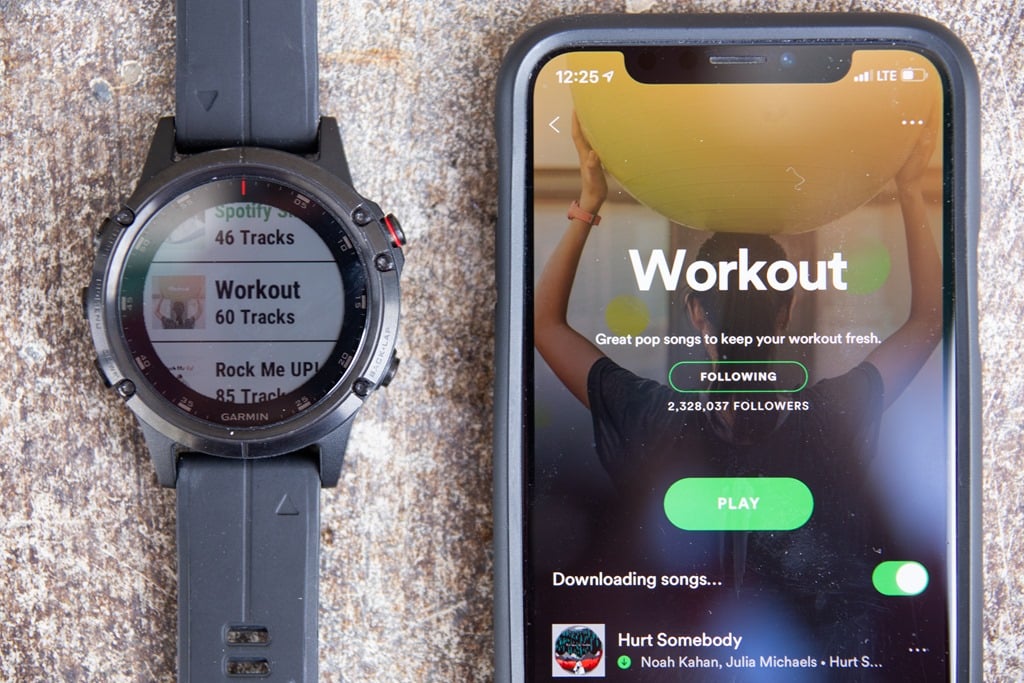
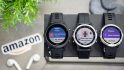
But as of today, now you can stream Spotify music to your Garmin watch. Assuming you’ve got a Garmin watch that supports music that is. As of today, October 3rd at 5PM US Eastern Time, that happens to be the Fenix 5 Plus series [Update Oct 30th: Now the FR645 Music also supports Spotify]. Of course, Garmin also makes the Forerunner 645 Music and Vivoactive 3 Music devices. Neither of those watches support Spotify as of 5PM today. But more on that in a moment.
If you want to just get cookin’, you’ll simply download the Garmin Connect IQ Spotify app (using the mobile app or computer), authorize Spotify via your phone, and then you’re off to download your Spotify music from within the app. In case you’re looking for a bit more detail – I’ll dive through all that below. Note that Spotify requires a Spotify Premium account in order to make this all work.
I’d note that this is without question the cleanest and best Connect IQ app I’ve seen Garmin put together (or anyone else). It just works. Seriously, it just works. Every stinkin’ time. And does exactly what I want it to do. Anyway, onto the details.
Getting it setup:
I’ll first preface this section by noting that this these photos probably make it more complex than it really is. Basically, you just download the app from the Connect IQ store and then follow the prompts to authorize your account. That’s it. But, for the sake of making things super clear and non-short, here goes.
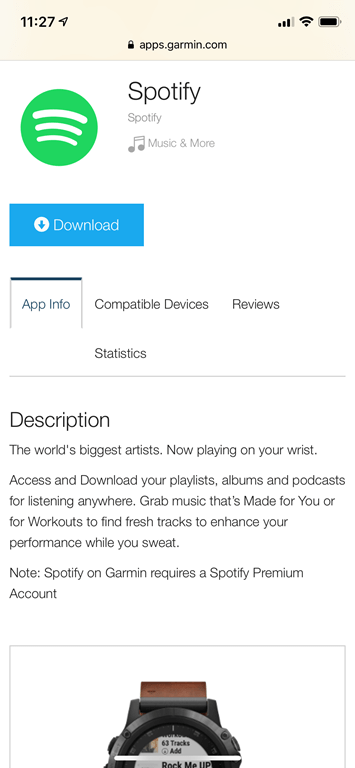
First up is pulling up the Garmin Connect IQ app store for your device, be it on your mobile phone or the Garmin Connect site (if on desktop), then searching for Spotify.
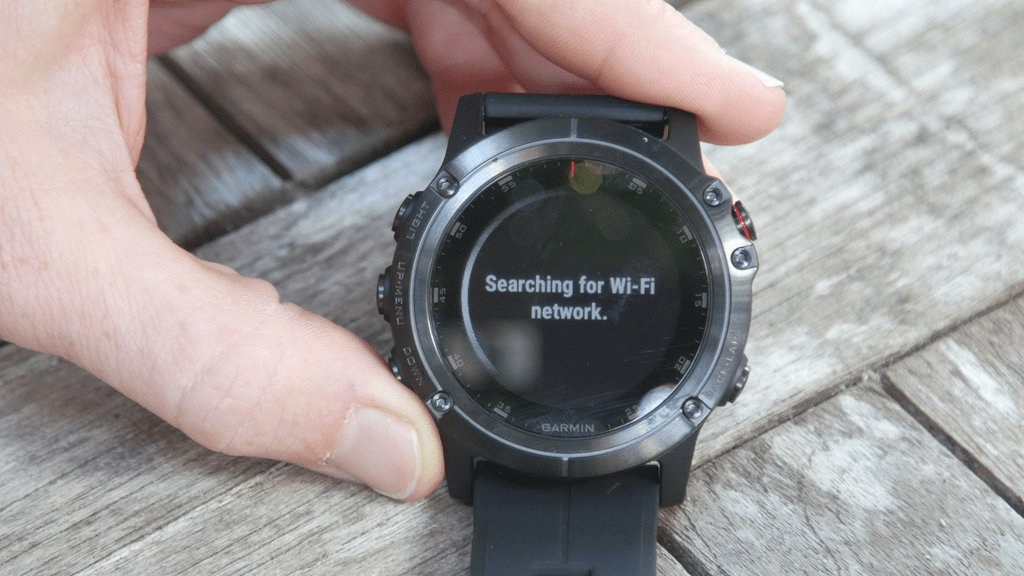
Also note – you’ll eventually need WiFi access setup on your device to make this work. As with virtually all wearables, it can’t be something like a Starbucks hotspot or hotel wifi.
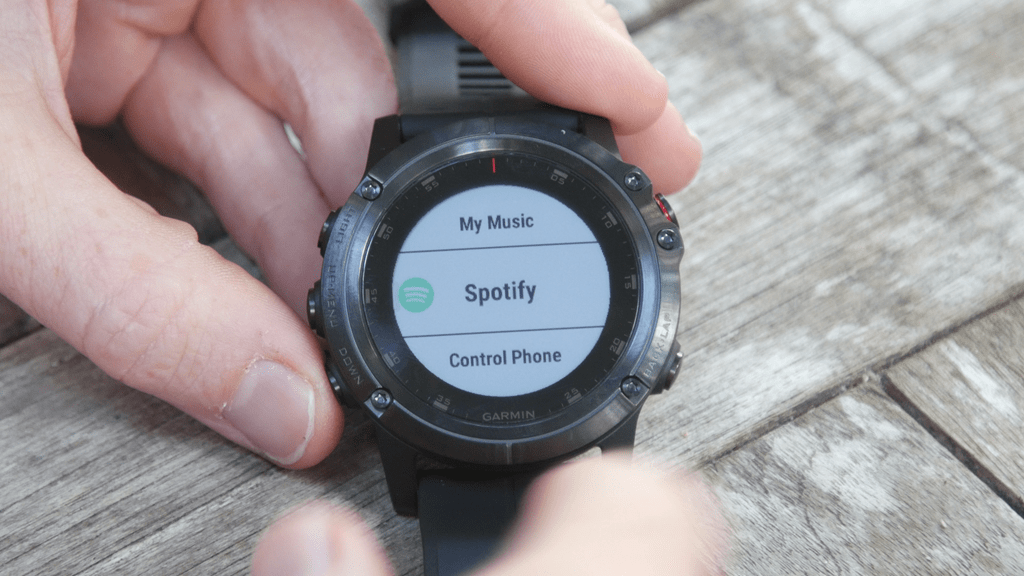
Once that’s done you’ll click to add it to your device, and in a short bit it’ll sync to your watch, which you can then confirm there. At this point you can go ahead and access it on your watch by scrolling up to the Music menu (it should show up by default there, but if it doesn’t for some reason you can go into the Widget Settings on your watch and add it to the widget roll).
Then depending on how much you’ve used music on your Garmin it’ll either show up immediately in the sources list, or you’ll need to change your music source to Spotify:
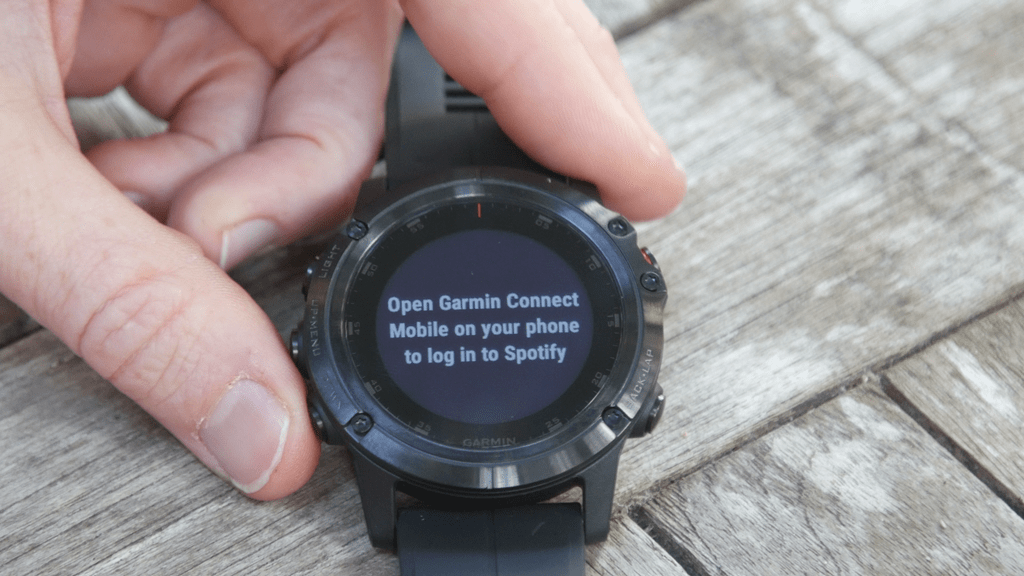
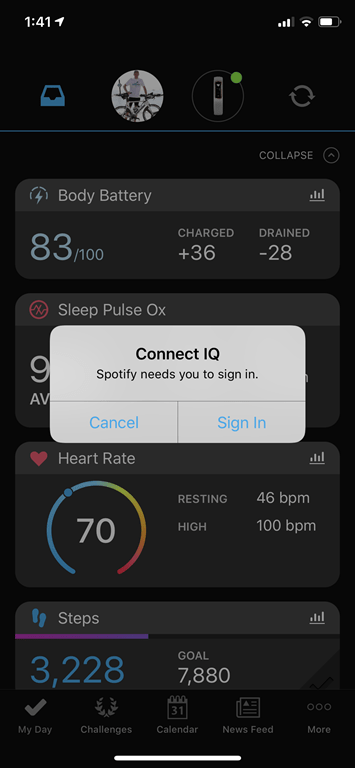
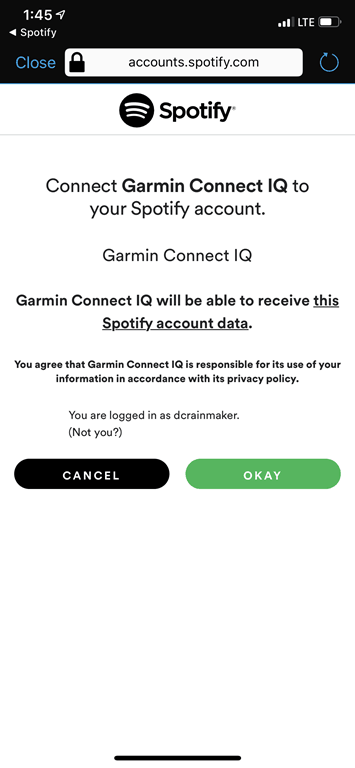
Once you open the Spotify app it’ll tell you to check your phone. You need to do this to authenticate and authorize on Spotify.
Almost identical to how you’d do it for Strava and such. It only takes a second:
And then you’re done with setup.
General Use:
So for the most part using the Spotify ‘app’ is pretty similar to using other Garmin music apps, except for whatever reason the entire experience seems cleaner, smoother and less likely to crap itself. I don’t know why, but it’s been rock-solid for me since August. Love it.
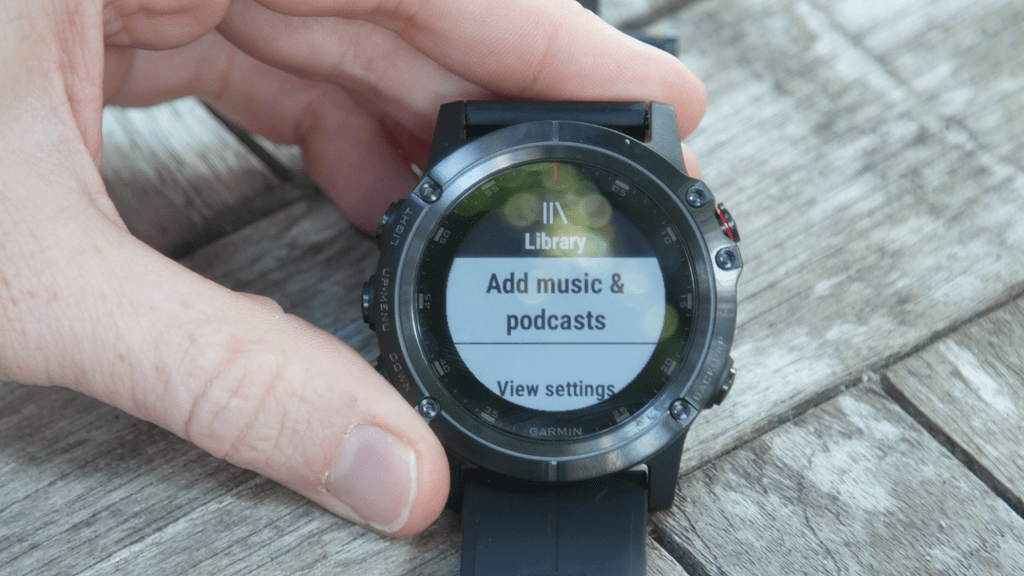
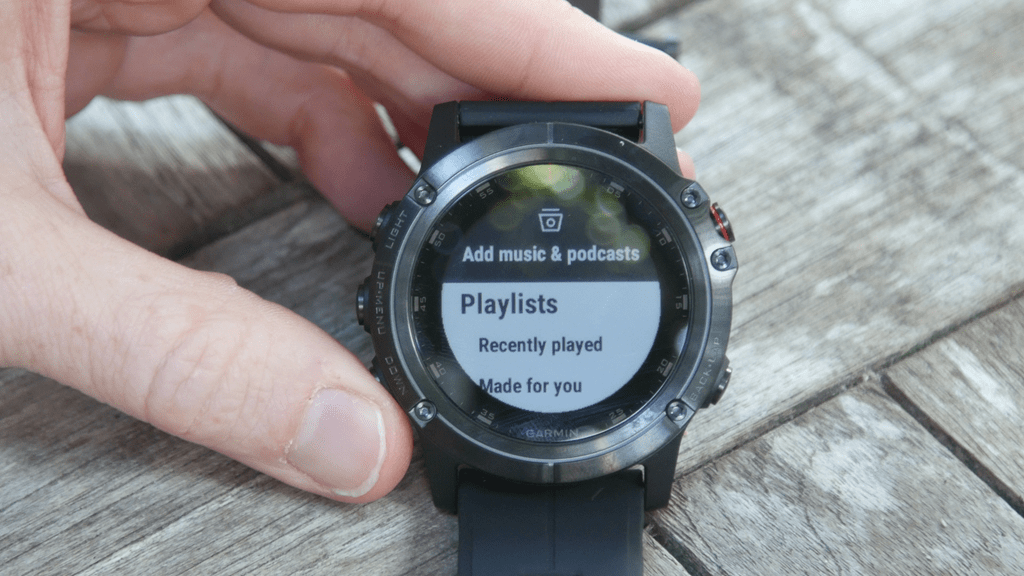
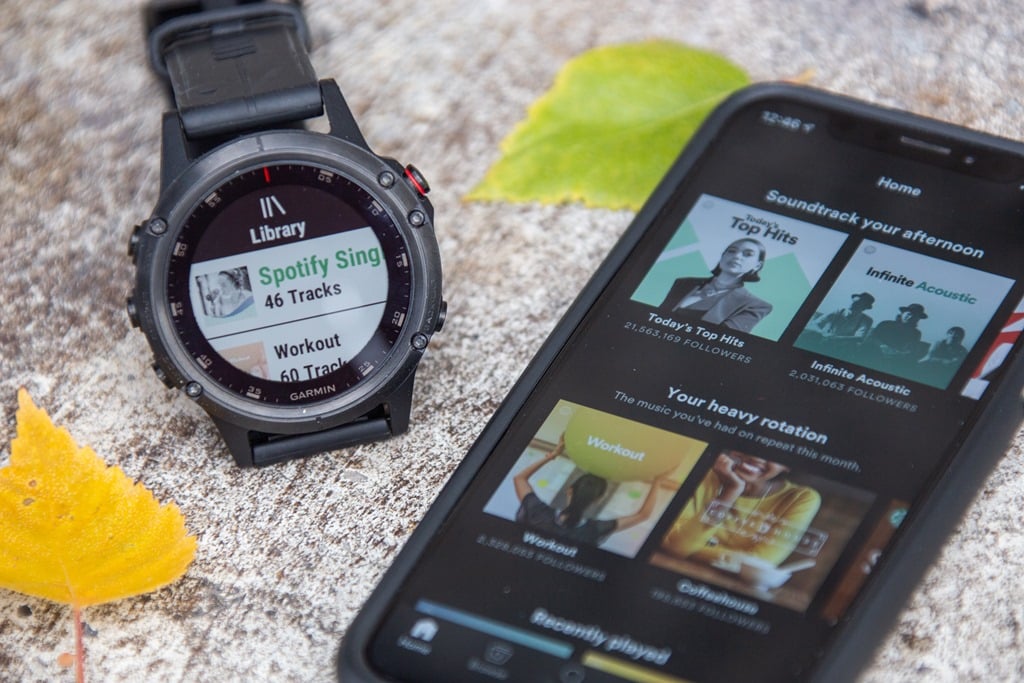
You’ll start by choosing which music to sync. Once you’ve opened the Spotify app on your Garmin you can dig into the various portions of Spotify:
– Playlists
– Recently Played
– Made for you
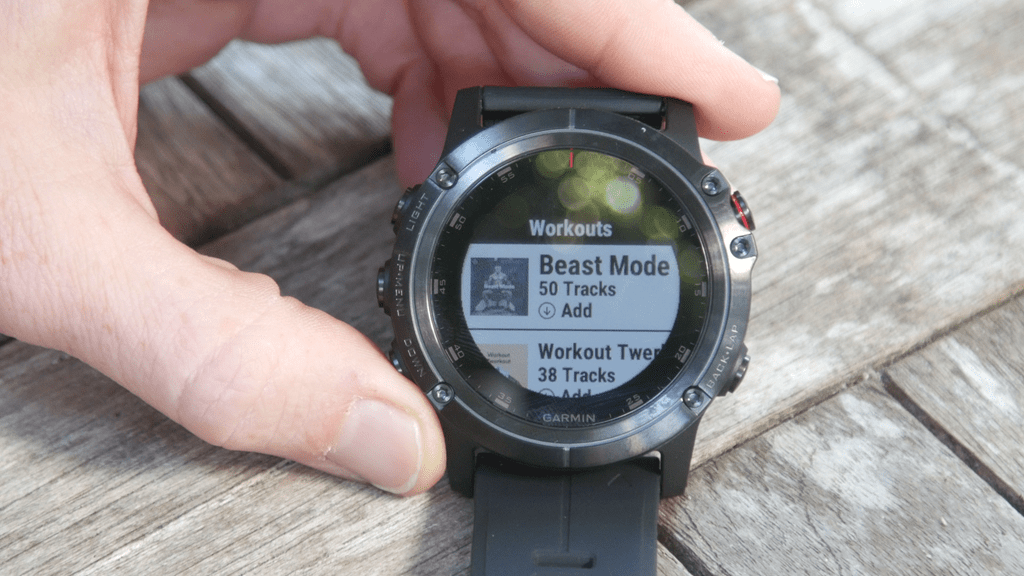
– Workouts
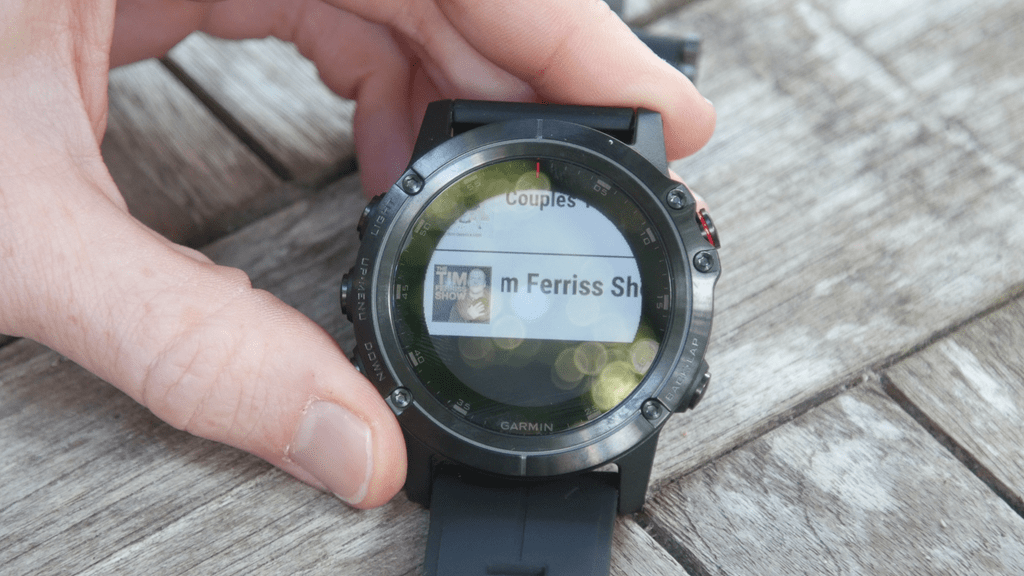
– Podcasts
You can choose anything you want from your saved playlists to a handful of Spotify curated/showcased workout-focused playlists:
You’ll notice you do get playlist covers, and single album covers, but you don’t get album/song covers for individual songs within a playlist. Hopefully that’s something that Garmin & Spotify can tweak down the road.
There’s actually a nifty secret in here in that if you use Spotify to manage your podcasts, then you effectively get WiFi updating of podcasts (versus manual/cabled updating with the regular Garmin software).
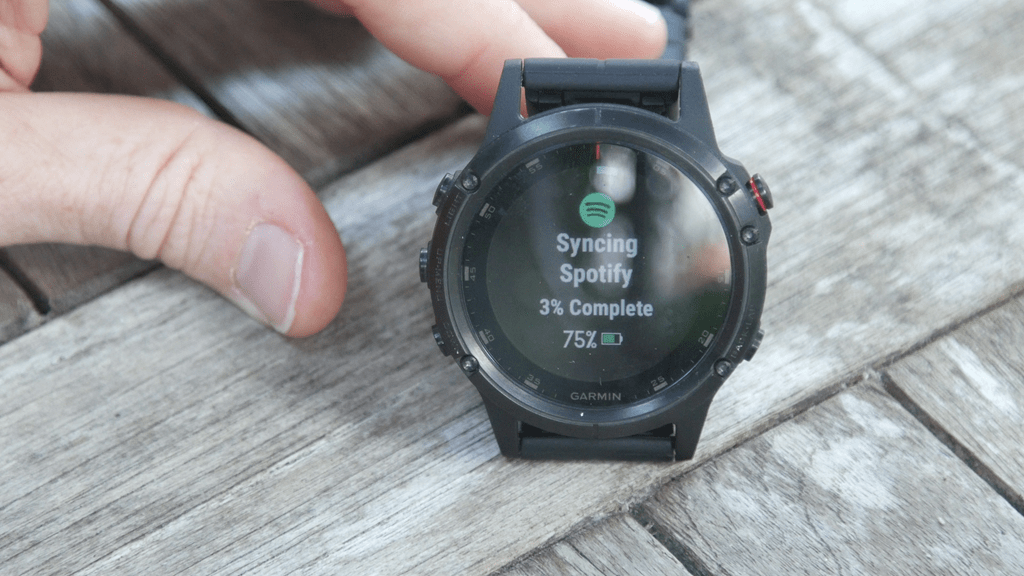
When you select a playlist to download, it’ll go off and connect to WiFi and start downloading it:
In general it’s quick, but not laptop-speed quick. For example, a 60-80 song playlist seems to take about 5-8 minutes for the initial download. Hardly a big deal of course, but not instant either. Simple math I find is about 1 minute per 10 songs. I haven’t found a limit to the number of songs yet you can download. On one of my Fenix 5 Plus units I’ve synced well over 1,500 songs across different playlists.
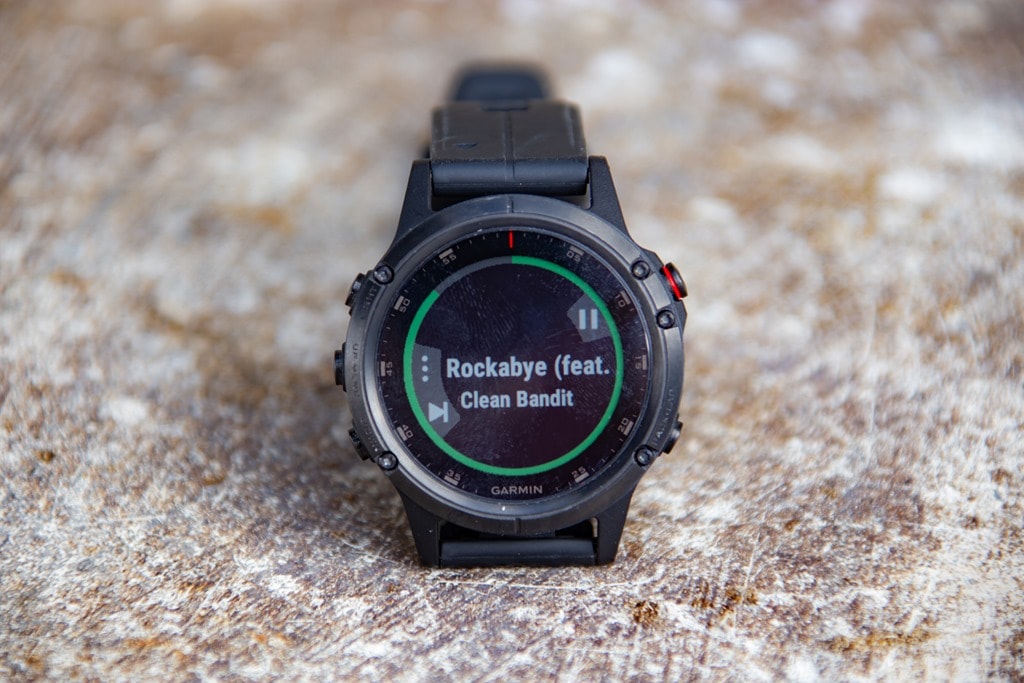
And now you’re ready to play music. It’s no different than before in that it’ll go off and find your Bluetooth headphones first. And then you’ll use the usual controls to play/pause/skip/etc, as well as increase/decrease volume.
All of the play-specific features are available within workout mode as well if you simply add the Music screen to your activity type. Interestingly, Garmin is also rolling out the new style player to the Forerunner 645 Music today in a firmware update. Thus another clue as to when that unit might see additional music app support.
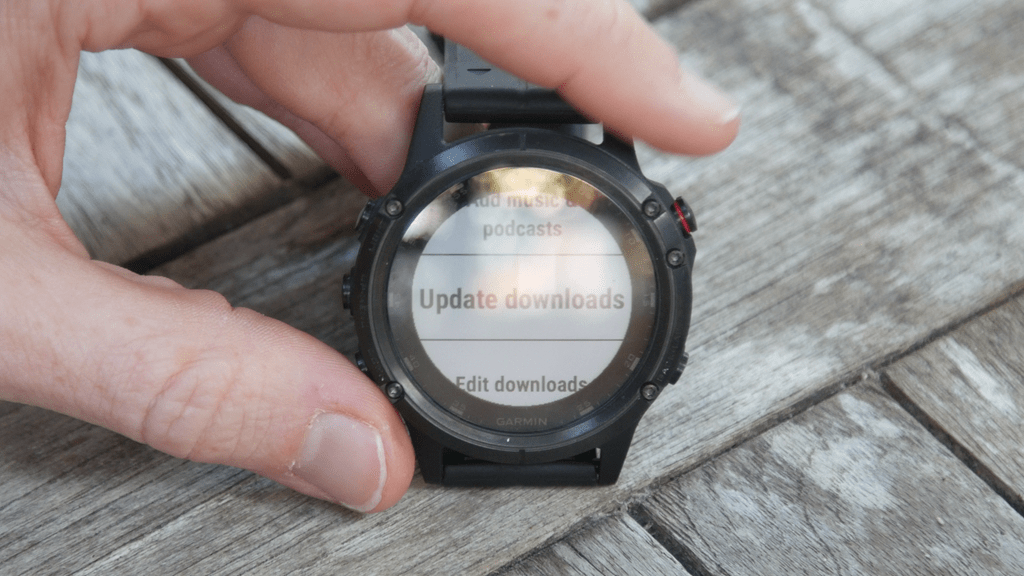
Of course of the biggest benefits of a streaming music service is that the music is often dynamic within these playlists – constantly updated so it doesn’t get stale. Nobody likes stale music, especially if its Nickelback. So to deal with that you’ll see the option within the Spotify app to ‘Update Downloads’, which will simply connect to WiFi and grab any updates (new songs) to your existing lists:
And thus you’re good to go!
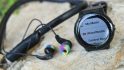
I’ve been running pretty regularly with Spotify and my Fenix 5+ without issue. For the most part I’ve been using these Skullcandy headphones, which work pretty well with my Fenix 5+ (I can contort my body into certain positions however where they briefly drop connectivity – but that’s rare while running). They were ones that Garmin had recommended and were in attendee bags for the Connect IQ Summit back in April. The Girl has also been using them with good success too.
I’ve also got an older pair of the Beats headphones too, and they also work just fine. Ultimately though, none of that really matters though from a Spotify standpoint. As long as the Garmin pairs to it as a valid Bluetooth audio device, then Spotify is happy to play through to it.
Wrap-Up:
There’s no question this is a big deal. Since the Forerunner 645 was first announced way back in January at CES, the unavoidable follow-up question was always ‘When’s Spotify coming?’. The answer to that wasn’t in Garmin’s hands, but rather, Spotify’s. That’s generally the way music streaming services work – the streaming service holds the reins there. A company like Garmin (or Fitbit or Samsung or whomever) can request access and petition hard – but ultimately, it’s Spotify’s decision.
When I met with Spotify back in April at the Connect IQ Summit, it wasn’t clear they were still trying to figure out where Garmin fit into their world. Certainly, Garmin now commands a significant chunk of the smartwatch realm. Especially once you remove Apple from the equation, because it’s unlikely we’d see an Apple Watch app for Spotify, given the competitive aspects there (vs Apple Music). That basically just leaves Garmin and Fitbit as the most likely candidates for wearables that Spotify would partner with (beyond some existing Samsung units that have it).
Of course, some of you are wondering about that Forerunner 645 Music and Vivoactive 3 Music that aren’t included in today’s release. For that, it’s probably worthwhile understanding a tiny bit of background on how music platform integration works across the board (not necessarily tied to Garmin). We’ll go with the bulleted style of information transfer:
– For any app/device/etc that plays Spotify content, Spotify must individually certify each such ‘system’ (model). Be it a speaker, a watch, or anything else.
– Garmin overwhelmingly wants all of their music devices to have equivalent music capabilities as fast as possible.
– An example of a single certified ‘system’ is the Fenix 5 Plus
– Garmin has three such potential systems today, only one of which is certified today (the Fenix 5 Plus)
– Garmin will not discuss non-certified systems
– Garmin will however officially state that “more models supported soon”
– Sometimes things change at the very last second
Got it? Good. I suspect you’ll be able to figure out that this isn’t a case of Garmin purposefully only releasing the Fenix 5 Plus variant because it’s their higher end watch over the other two. Hopefully, we’ll see them branch out beyond this watch with other units faster than you can keep hitting that refresh button on your browser.
In the meantime – for those Fenix 5 Plus users, go forth and enjoy your newfound music capabilities.
With that – thanks for reading!
FOUND THIS POST USEFUL? SUPPORT THE SITE!
Hopefully, you found this post useful. The website is really a labor of love, so please consider becoming a DC RAINMAKER Supporter. This gets you an ad-free experience, and access to our (mostly) bi-monthly behind-the-scenes video series of “Shed Talkin’”.
Otherwise, perhaps consider using the below link if shopping on Amazon. As an Amazon Associate, I earn from qualifying purchases. It doesn’t cost you anything extra, but your purchases help support this website a lot. It could simply be buying toilet paper, or this pizza oven we use and love.
I swim, bike and run. Then, I come here and write about my adventures. It’s as simple as that. Most of the time. If you’re new around these parts, here’s the long version of my story.
You'll support the site, and get ad-free DCR! Plus, you'll be more awesome. Click above for all the details. Oh, and you can sign-up for the newsletter here!
Here’s how to save!
Wanna save some cash and support the site? These companies help support the site! With Backcountry.com or Competitive Cyclist with either the coupon code DCRAINMAKER for first time users saving 15% on applicable products.
You can also pick-up tons of gear at REI via these links, which is a long-time supporter as well:
Alternatively, for everything else on the planet, simply buy your goods from Amazon via the link below and I get a tiny bit back as an Amazon Associate. No cost to you, easy as pie!
You can use the above link for any Amazon country and it (should) automatically redirect to your local Amazon site.
While I don't partner with many companies, there's a few that I love, and support the site. Full details!
Want to compare the features of each product, down to the nitty-gritty? No problem, the product comparison data is constantly updated with new products and new features added to old products!
Wanna create comparison chart graphs just like I do for GPS, heart rate, power meters and more? No problem, here's the platform I use - you can too!
Think my written reviews are deep? You should check out my videos. I take things to a whole new level of interactive depth!
Smart Trainers Buyers Guide: Looking at a smart trainer this winter? I cover all the units to buy (and avoid) for indoor training. The good, the bad, and the ugly.
Check out
my weekly podcast - with DesFit, which is packed with both gadget and non-gadget goodness!
Get all your awesome DC Rainmaker gear here!
FAQ’s
I have built an extensive list of my most frequently asked questions. Below are the most popular.
You probably stumbled upon here looking for a review of a sports gadget. If you’re trying to decide which unit to buy – check out my in-depth reviews section. Some reviews are over 60 pages long when printed out, with hundreds of photos! I aim to leave no stone unturned.
I travel a fair bit, both for work and for fun. Here’s a bunch of random trip reports and daily trip-logs that I’ve put together and posted. I’ve sorted it all by world geography, in an attempt to make it easy to figure out where I’ve been.
The most common question I receive outside of the “what’s the best GPS watch for me” variant, are photography-esq based. So in efforts to combat the amount of emails I need to sort through on a daily basis, I’ve complied this “My Photography Gear” post for your curious minds (including drones & action cams!)! It’s a nice break from the day-to-day sports-tech talk, and I hope you get something out of it!
Many readers stumble into my website in search of information on the latest and greatest sports tech products. But at the end of the day, you might just be wondering “What does Ray use when not testing new products?”. So here is the most up to date list of products I like and fit the bill for me and my training needs best! DC Rainmaker 2024 swim, bike, run, and general gear list. But wait, are you a female and feel like these things might not apply to you? If that’s the case (but certainly not saying my choices aren’t good for women), and you just want to see a different gear junkies “picks”, check out The Girl’s Gear Guide too.